Last updated: September 2026
When working with Kubernetes, one question that can be confusing at first is:
If I have multiple Kubernetes worker nodes, where exactly is a Pod’s storage located?
For example, suppose you have 5 Ubuntu Kubernetes worker nodes, and each worker node has a 20 GB local disk.
You deploy an application with 5 replicas.
Does Kubernetes create a single 100 GB storage pool for the Pods?
Or does each Pod get its own portion of the 20 GB disk on the node where it is running?
To understand this properly, we need to look at how Kubernetes handles container images, writable container storage, ephemeral storage, local volumes, and persistent volumes.
Understanding Kubernetes Pod Storage
Kubernetes Pods run on individual worker nodes.
For example, if you have:
Worker Node 1     20 GB
Worker Node 2     20 GB
Worker Node 3     20 GB
Worker Node 4     20 GB
Worker Node 5     20 GB
You have:
5 nodes × 20 GB = 100 GBBut this does not mean Kubernetes has created one shared 100 GB filesystem.
Instead, you have five separate node-local storage areas:
             Kubernetes Cluster

       ┌──────────────┐
       │ Worker Node 1│
       │    20 GB     │
       └──────────────┘

       ┌──────────────┐
       │ Worker Node 2│
       │    20 GB     │
       └──────────────┘

       ┌──────────────┐
       │ Worker Node 3│
       │    20 GB     │
       └──────────────┘

       ┌──────────────┐
       │ Worker Node 4│
       │    20 GB     │
       └──────────────┘

       ┌──────────────┐
       │ Worker Node 5│
       │    20 GB     │
       └──────────────┘
The storage on these nodes is normally independent.
How Does Kubernetes Decide Where a Pod Runs?
When you create a Deployment such as:
spec:
  replicas: 5
Kubernetes creates five Pods.
The Kubernetes scheduler decides which worker nodes should run those Pods.
For example:
Worker 1
  └── Pod 1

Worker 2
  └── Pod 2

Worker 3
  └── Pod 3

Worker 4
  └── Pod 4

Worker 5
  └── Pod 5
But Kubernetes does not necessarily distribute them one per node.
You could also end up with:
Worker 1
  ├── Pod 1
  ├── Pod 2
  └── Pod 3

Worker 2
  └── Pod 4

Worker 3
  └── Pod 5

Worker 4
  └── Nothing

Worker 5
  └── Nothing
The scheduler considers factors such as CPU and memory requests, node affinity, taints and tolerations, topology constraints, and available resources.
Local ephemeral storage can also be considered when Pods specify ephemeral-storage requests.
What Happens to the Container Image?
This is where things become interesting.
Suppose your application uses a container image that is 2 GB in size.
You deploy:
replicas: 5It is tempting to think:
5 Pods × 2 GB = 10 GBThat is not always how it works.
Container images are stored on the worker node, and the container runtime can reuse image layers between containers on that node.
For example, if the five Pods are distributed like this:
Worker 1
  ├── Pod 1
  └── Pod 2

Worker 2
  ├── Pod 3
  └── Pod 4

Worker 3
  └── Pod 5
The image may need to be present on Worker 1, Worker 2 and Worker 3.
Conceptually:
Worker 1 → image cached locally
Worker 2 → image cached locally
Worker 3 → image cached locally
The image does not need to be downloaded separately for every Pod on the same node.
Therefore, the approximate image storage could be closer to:
2 GB × 3 nodes = 6 GBrather than:
2 GB × 5 Pods = 10 GBThe exact disk usage depends on the image layers and runtime implementation.
A Pod Does Not Have One Single Disk
This is one of the most important concepts to understand about Kubernetes storage.
A Pod does not have one disk with a fixed size such as:
Pod = 5 GBInstead, several different storage concepts can be involved.
For a normal container, you can think about the storage arrangement like this:
                Container Image
                ┌──────────────┐
                │ Layer 3      │
                │ Layer 2      │
                │ Layer 1      │
                └──────────────┘
                       │
                       ▼
              Writable Layer
                       │
                       ▼
                  Container
There are therefore two important parts of the container filesystem:
- Read-only image layers
- A writable container layer
Additional volumes such as emptyDir, hostPath, or a PersistentVolume can also be mounted into the container.
How Many Storage Layers Does a Pod Have?
Strictly speaking, the Pod itself doesn’t have a fixed number of storage layers.
The number of image layers depends on how the container image was built.
For example, suppose your image is 2 GB:
myapp:v1

Layer 1 → Ubuntu base       500 MB
Layer 2 → Python            400 MB
Layer 3 → Application       700 MB
Layer 4 → Dependencies      400 MB
                            ------
                             2 GB
Those are read-only image layers.
The exact number of layers depends on the image.
For example, a Dockerfile such as:
FROM ubuntu
RUN apt-get update
RUN apt-get install nginx
COPY app /app
can result in multiple image layers.
The important thing is that these layers form the image that the container runtime uses to create the container filesystem.
Then There Is the Writable Container Layer
When the container starts, the container runtime provides a writable layer above the read-only image layers.
Conceptually:
Image layers
     │
     ▼
┌───────────────┐
│ Writable layer│
└───────────────┘
     │
     ▼
   Container
Suppose the application runs:
echo "hello" > /tmp/test.txtThe new file is written to the container’s writable layer rather than modifying the original read-only image layer.
So if your image is:
2 GBand the running container writes:
500 MByou could have roughly:
Image layers       2 GB
Writable layer   + 0.5 GB
-------------------------
                    2.5 GB
of container-related local storage usage.
This is an important distinction:
The image size and the storage consumed by a running container are not necessarily the same thing.
The image may be 2 GB, but the container can consume additional local storage through its writable layer.
What Happens When Multiple Pods Use the Same Image?
Suppose you have five Pods on the same worker node:
Worker Node 1

Pod 1
Pod 2
Pod 3
Pod 4
Pod 5
and all five Pods use:
myapp:v1where the image is 2 GB.
You should not think of the node as storing:
2 GB × 5 = 10 GBof image layers.
Instead, the container runtime can keep one copy of the required image layers and allow multiple containers to use them.
Conceptually:
                 myapp:v1
                  2 GB
                    │
       ┌────────────┼────────────┐
       │            │            │
       ▼            ▼            ▼
     Pod 1        Pod 2        Pod 3
       │            │            │
 Writable       Writable      Writable
  Layer          Layer         Layer
Each container can therefore have its own writable data while sharing the underlying image layers.
For example:
Image layers                 2.0 GB
Pod 1 writable layer         0.5 GB
Pod 2 writable layer         0.3 GB
Pod 3 writable layer         0.8 GB
Pod 4 writable layer         0.2 GB
Pod 5 writable layer         0.4 GB
                             ------
                             4.2 GB
The exact implementation and storage usage depend on the container runtime and filesystem.
What About emptyDir?
emptyDir is not another image layer.
It is a Kubernetes volume.
For example:
volumes:
  - name: app-data
    emptyDir: {}
and:
volumeMounts:
  - name: app-data
    mountPath: /data
The Pod now has:
Pod
│
├── Container filesystem
│      └── Writable layer
│
└── /data
       └── emptyDir
The important thing is that the emptyDir is separate from the container’s writable layer.
Conceptually:
Node
│
├── Image layers
├── Container writable layer
└── emptyDir
These are separate storage concepts, even though they can ultimately consume space on the same node filesystem.
By default, emptyDir uses storage on the node. It can also be configured to use memory-backed storage, but that is a separate topic.
Can You See How Much Storage a Pod Is Using?
Yes, but it is a little different from kubectl top.
You may already be familiar with:
kubectl top podswhich shows CPU and memory usage.
For example:
NAME       CPU(cores)   MEMORY(bytes)
pod-01     20m          300Mi
pod-02     15m          250Mi
This does not normally give you the complete picture of a Pod’s ephemeral storage usage.
You can inspect a Pod with:
kubectl describe pod <pod-name> -n <namespace>Look for something similar to:
Requests:
  ephemeral-storage: 1Gi

Limits:
  ephemeral-storage: 2Gi
You can also define these values in the Pod specification:
resources:
  requests:
    ephemeral-storage: "1Gi"
  limits:
    ephemeral-storage: "2Gi"
However, there is an important distinction:
A request or limit is not the same thing as actual storage usage.
A Pod with a 2Gi ephemeral-storage limit does not automatically consume 2 GiB. The value represents the resource request/limit configured for the Pod.
Checking Actual Storage on the Node
For actual storage investigation, you often need to look at the node and the container runtime.
First:
df -hThis shows filesystem usage.
For example:
Filesystem      Size  Used Avail Use%
/dev/sda2        20G   12G  8.0G  60%
/dev/sdb1        25G    8G   17G  32%
This is useful because Kubernetes node storage can be spread across different filesystems.
If your node has a separate filesystem mounted at /var/lib/containerd, you can check it directly:
df -h /var/lib/containerdYou can also inspect how much space the directory is consuming:
sudo du -sh /var/lib/containerdTo investigate its subdirectories:
sudo du -sh /var/lib/containerd/*On a node using containerd, crictl stats can also provide container statistics, including storage-related information depending on the container runtime and version:
crictl statsThe exact output and available storage metrics can vary.
Do not manually delete files from /var/lib/containerd on a production node. The directory is managed by the container runtime. Container image cleanup should be performed using appropriate container-runtime or Kubernetes mechanisms.
You can also check kubelet storage:
df -h /var/lib/kubeletand:
sudo du -sh /var/lib/kubeletThe exact paths and storage layout can vary depending on the Kubernetes distribution and node configuration.
Understanding This on a VKS Worker Node
Now let’s apply this to a real-world VKS worker node.
Suppose a worker node has:
NAME   SIZE  MOUNTPOINT
sda    20G   /
sdb    25G   /var/lib/containerd
The layout can be visualized as:
                 VKS Worker Node
                       │
             ┌─────────┴─────────┐
             │                   │
          sda 20G             sdb 25G
             │                   │
             ▼                   ▼
            /              /var/lib/containerd
             │                   │
             │                   ├── Images
             │                   ├── Image layers
             │                   └── Runtime data
             │
             └── /var/lib/kubelet
                       │
                       ├── Pod-related data
                       ├── emptyDir
                       └── other kubelet data
This demonstrates an important point:
Not all local Pod/container storage necessarily ends up on the same disk.
It depends on which filesystem backs the relevant Kubernetes or container-runtime directory.
In this example, containerd’s storage is on sdb, while the root filesystem and kubelet data are on sda.
Does This Mean the Pod Runs on /var/lib/containerd?
No.
This is another important distinction.
If you see:
sdb1 → /var/lib/containerdit does not mean:
Pods run on
sdb.
It means the container runtime’s storage directory is located on that filesystem.
The Pod still runs on the worker node.
For example:
Worker Node
│
├── sda → /
│
└── sdb → /var/lib/containerd
             │
             └── container runtime storage
The Pod uses the resources and storage provided by the node, but the container runtime decides where its image and runtime data are stored based on its configuration.
Can I Specify Where a Pod’s Storage Goes?
This needs some clarification because there are two different meanings of “where the storage goes.”
You can specify where a volume appears inside the container using mountPath.
For example:
volumeMounts:
  - name: application-data
    mountPath: /app/data
This means:
Inside the container:

/app/data
is the location where the volume is mounted.
It does not mean:
Put the Pod on a disk mounted at
/app/data.
The mountPath is a path inside the container.
What About /home/myapp.jar?
Consider a Deployment containing:
command:
  - java

args:
  - -jar
  - /home/myapp.jar
This does not mean that the Pod runs on /home/myapp.jar.
It means the Java process inside the container should execute the file:
/home/myapp.jarinside the container filesystem.
For example:
Container
│
├── /bin
├── /etc
├── /home
│    └── myapp.jar
├── /tmp
└── ...
The JAR could have been included in the container image when the image was built.
For example:
FROM eclipse-temurin:17

COPY myapp.jar /home/myapp.jar
In that case, /home/myapp.jar is part of the container image.
The Important Difference
At this point, it is useful to separate these concepts:
Container image
    ↓
Read-only image layers

Container writable layer
    ↓
Local changes made by the container

emptyDir
    ↓
Temporary Pod volume

hostPath
    ↓
Directory directly from the worker node

PVC
    ↓
Persistent storage
They are all different things.
Once you understand this distinction, it becomes much easier to understand why a Pod does not have a single fixed “disk size.”
Does the Container Image Stay on the Node While the Pod Is Running?
Generally, yes.
When a Pod is scheduled to a node, the container runtime checks whether the required image is already available locally.
If it is not available, the runtime pulls it from the container registry.
For example:
Pod scheduled
      |
      v
Does node have image?
      |
   ┌──┴──┐
   |     |
  YES    NO
   |     |
   |     v
   |   Pull image
   |   from registry
   |     |
   └──┬──┘
      v
Start container
The running container does not continuously read the image from the registry.
The required image layers are stored locally by the container runtime.
In a Kubernetes environment using containerd, this storage is commonly under:
/var/lib/containerdalthough the exact configuration can vary.
What If the Pod Moves to Another Node?
This is an important difference between Kubernetes and a traditional VMware VM environment.
With a VMware VM using shared storage, you can perform operations such as vMotion.
For example:
ESXi Host 1                 ESXi Host 2
    |                           |
    |------ Shared Storage -----|
              |
             VMDK
The VM can move between hosts while its virtual disk remains on shared storage.
Kubernetes does not normally live-migrate a running Pod in the same way.
Instead, if the original Pod needs to run on another node, Kubernetes normally terminates the old Pod and creates a new Pod on the new node.
For example:
Worker 1
   |
   └── Pod A
         |
         | Pod terminated
         v

Worker 2
   |
   └── New Pod A
The replacement Pod gets a new Pod identity.
What Happens to the Container Image When a Pod Is Recreated?
Suppose the original Pod was running on Worker 1.
Worker 1 already has the image:
Worker 1
└── containerd
    └── Application image
If Kubernetes creates the replacement Pod on Worker 2:
Worker 2
└── containerd
The runtime checks whether the image already exists on Worker 2.
If it does not, it pulls the image from the registry.
             Container Registry
                    |
                    |
              Pull image
                    |
                    v
              Worker Node 2
                    |
                 container
                    |
                   Pod
This is why container registries are important in Kubernetes.
What About Data Created by the Application?
This is where persistent storage becomes important.
Imagine an application writes:
/customer-dataor:
/app/uploadsIf that data is stored only in the container’s local writable layer, it is tied to that container/node environment.
If the Pod is deleted and recreated elsewhere, that local data should not be treated as persistent application storage.
This is why Kubernetes provides:
- Volumes
- PersistentVolumes
- PersistentVolumeClaims
- StorageClasses
Kubernetes Persistent Storage
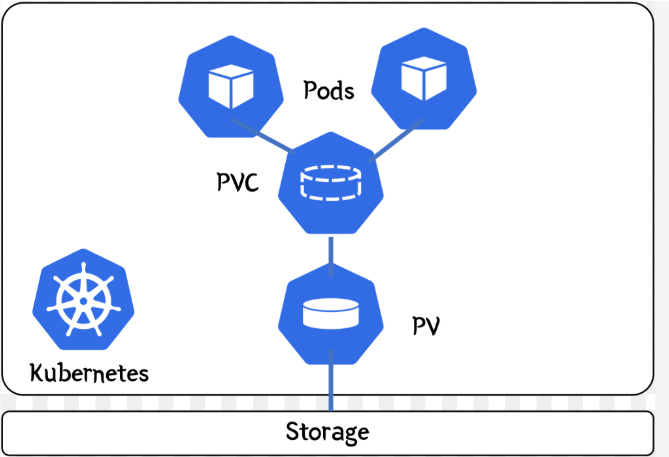
For application data that must survive Pod recreation, you normally use a PersistentVolumeClaim (PVC).
For example:
Pod
 |
 | mounts
 v
PVC
 |
 v
PV
 |
 v
Storage
The underlying storage could be backed by technologies such as:
vSAN
NFS
SAN
Cloud block storage
Cloud file storage
The exact storage backend depends on the Kubernetes platform and StorageClass.
In a VMware environment, for example, a PVC may ultimately be provisioned from storage managed through the VMware storage integration.
The important concept is:
The Pod uses the storage, but the persistent data does not depend on the Pod’s container filesystem.
Persistent Storage vs Ephemeral Storage
This distinction is extremely important.
Ephemeral Storage
Ephemeral storage is temporary storage associated with the Pod/node environment.
Examples include:
- Container writable layers
emptyDir- Container logs
- Other kubelet-managed local data
Conceptually:
Worker Node
│
├── Container image
├── Container writable layer
├── emptyDir
└── Container logs
This storage consumes node-local disk.
If the Pod is deleted, data stored in ephemeral locations may be lost.
Persistent Storage
Persistent storage is designed to survive Pod deletion and recreation.
For example:
Pod
 |
 v
PVC
 |
 v
PV
 |
 v
External/Persistent Storage
If the Pod is recreated:
Old Pod
   |
   X
Deleted
A new Pod can mount the same PVC:
New Pod
   |
   v
Same PVC
   |
   v
Same persistent data
This is one of the major reasons Kubernetes applications use PVCs for databases, application data, uploads and other data that must survive Pod recreation.
How Many Storage Layers Does a Pod Have?
A Pod does not have a fixed number of “storage layers.”
The container image itself is made up of read-only image layers.
For example:
Application container image

┌─────────────────────────┐
│ Application layer       │
├─────────────────────────┤
│ Dependency layer        │
├─────────────────────────┤
│ Runtime layer           │
├─────────────────────────┤
│ Base OS layer           │
└─────────────────────────┘
The exact number depends on how the image was built.
When the container runs, the container runtime provides a writable layer on top of the image.
Conceptually:
┌─────────────────────────┐
│ Container writable layer│
├─────────────────────────┤
│ Read-only image layer   │
├─────────────────────────┤
│ Read-only image layer   │
├─────────────────────────┤
│ Read-only image layer   │
└─────────────────────────┘
The image layers can be shared by multiple containers on the same node.
Where Is This Storage on a VKS Worker Node?
Let’s look at an example VKS worker node.
A worker node might have two disks:
NAME   SIZE   MOUNTPOINT
sda    20G    /
sdb    25G    /var/lib/containerd
The layout could look like this:
Worker Node
│
├── sda - 20 GB
│   └── /
│       └── /var/lib/kubelet
│
└── sdb - 25 GB
    └── /var/lib/containerd
This means the node has two separate local storage areas.
What Is Stored on the Root Disk?
Because the root filesystem is mounted on sda, directories under / are backed by that filesystem unless another filesystem is mounted underneath them.
For example:
sda
└── /
    ├── /etc
    ├── /var
    ├── /var/lib/kubelet
    └── ...
Therefore, kubelet-managed local data can consume space on the root disk.
This can include things such as:
- Pod-related local data
emptyDirvolumes- Kubelet data
- Container logs
- Other operating-system data
The exact usage depends on the Kubernetes configuration and workload.
What Is Stored Under /var/lib/containerd?
In this example:
sdb
└── /var/lib/containerd
the container runtime’s storage is placed on the 25 GB disk.
This is where containerd maintains its local container/image-related data.
Therefore, if several Pods use container images, those images and runtime data can consume space on sdb.
For example:
                 Worker Node
                     |
          ┌──────────┴──────────┐
          |                     |
        sda                   sdb
        20 GB                 25 GB
          |                     |
          /              /var/lib/containerd
          |
    /var/lib/kubelet
This separation can be useful because container image/runtime storage does not have to compete directly with the operating system for the same filesystem capacity.
Is the 25 GB Disk 25 GB Per Pod?
No.
This is a very important point.
If you have:
Worker Node
sdb = 25 GB
and the node runs:
Pod 1
Pod 2
Pod 3
Pod 4
the 25 GB belongs to the node’s containerd filesystem.
The Pods collectively consume space from it.
For example:
25 GB containerd disk
│
├── Pod 1 image/runtime data
├── Pod 2 image/runtime data
├── Pod 3 image/runtime data
└── Pod 4 image/runtime data
It is not:
Pod 1 → 25 GB
Pod 2 → 25 GB
Pod 3 → 25 GB
Pod 4 → 25 GB
Can I See How Much Storage a Pod Is Using?
Yes, but you need to distinguish between CPU/memory usage and local ephemeral storage.
You can start with:
kubectl describe pod <pod-name> -n <namespace>You can also inspect the node itself.
For example:
df -hTo check the containerd filesystem:
df -h /var/lib/containerdTo check the size of kubelet data:
sudo du -sh /var/lib/kubeletAnd containerd:
sudo du -sh /var/lib/containerdDepending on your Kubernetes distribution and container runtime, tools such as crictl can also provide container runtime statistics.
What Is mountPath?
Another common source of confusion is the mountPath field in a Pod manifest.
For example:
volumeMounts:
  - name: application-data
    mountPath: /app/data
The important thing to understand is that:
/app/datais a path inside the container.
It does not mean:
Run this Pod on the disk mounted at
/app/data.
It simply means:
Make the specified volume available inside the container at
/app/data.
For example:
Worker Node
     |
     └── Pod
          |
          └── Container
               |
               └── /app/data
The actual storage behind /app/data depends on the volume definition.
What About hostPath?
Kubernetes also supports hostPath.
For example:
volumes:
  - name: host-data
    hostPath:
      path: /data/application
      type: DirectoryOrCreate
This means a directory on the worker node is made available to the container.
Conceptually:
Worker Node
│
└── /data/application
        |
        | hostPath
        v
     Container
        |
        └── /app/data
However, hostPath is node-specific.
If the Pod moves from Worker 1 to Worker 2:
Worker 1
└── /data/application
is not the same directory as:
Worker 2
└── /data/application
This is why hostPath should not normally be used as a replacement for proper persistent storage in a multi-node application.
How Do I Make Sure a Pod Runs on a Particular Node?
Storage location and Pod scheduling are two different concepts.
If your requirement is:
I want this Pod to run on a particular worker node.
You use Kubernetes scheduling mechanisms such as:
nodeSelector- Node affinity
- Taints and tolerations
- Topology spread constraints
For example:
nodeSelector:
  kubernetes.io/hostname: worker-node-01
This tells Kubernetes to schedule the Pod on a node matching that label.
This is completely different from:
volumeMounts:
  - mountPath: /app/data
The first controls where the Pod runs.
The second controls where a volume appears inside the container.
What Happens If a Pod Is Deleted?
Consider a Pod using only local ephemeral storage.
Worker 1

Pod
 |
 ├── container image
 ├── writable layer
 └── emptyDir
If the Pod is deleted:
Pod
 |
 X
Deleted
the Pod’s ephemeral data can disappear.
If Kubernetes creates a replacement Pod on Worker 2:
Worker 2

New Pod
 |
 ├── image
 ├── writable layer
 └── emptyDir
the new Pod starts with its own container filesystem and ephemeral storage.
The original local data does not automatically follow it.
What Happens If the Pod Uses a PVC?
Now consider:
Pod
 |
 v
PVC
 |
 v
PV
 |
 v
Persistent Storage
If the Pod is deleted:
Old Pod
    |
    X
the PVC and its persistent data can remain.
When a new Pod is created:
New Pod
    |
    v
  PVC
    |
    v
Same persistent data
This is the model you generally want for application data that must survive Pod recreation.
Understanding a Real VKS Node Layout
A VKS worker node with a separate containerd disk can therefore be viewed like this:
                  VKS WORKER NODE
                       |
          ┌────────────┴────────────┐
          |                         |
       sda 20 GB                 sdb 25 GB
          |                         |
          /                   /var/lib/containerd
          |                         |
          |                    Container images
          |                    Runtime data
          |
    /var/lib/kubelet
          |
    Kubelet-managed
    local Pod data
          |
     emptyDir
     logs
     other local data
The important point is that not all Pod storage necessarily goes to the same disk.
Where data is stored depends on what kind of data it is and where the relevant filesystem or volume is mounted.
Should Every Kubernetes Worker Node Have a Second Disk?
There is no universal rule that every Kubernetes worker node must have a second disk.
However, separating container runtime storage from the root filesystem can be useful, particularly where workloads are expected to consume significant container image or runtime storage.
For example:
Without separate disk:

20 GB
 |
 ├── Operating system
 ├── Kubelet
 ├── Containerd
 ├── Container images
 ├── Logs
 └── Pod local data
Everything competes for the same filesystem.
With a separate containerd disk:
Root disk                    Containerd disk
20 GB                        25 GB
  |                             |
  ├── OS                        ├── Images
  ├── Kubelet                   ├── Runtime data
  └── Kubelet-managed data      └── Containerd storage
This provides separation between the operating system filesystem and container runtime storage.
The appropriate disk size and layout should still be determined from the Kubernetes distribution, VKS version, workload requirements, and supported VMware configuration.
Understanding Kubernetes Storage in One Picture
The easiest way to remember everything discussed in this article is:
                         Kubernetes Cluster
                                |
              ┌─────────────────┼─────────────────┐
              |                 |                 |
           Worker 1          Worker 2          Worker 3
              |                 |                 |
        ┌─────┴─────┐     ┌─────┴─────┐     ┌─────┴─────┐
        |           |     |           |     |           |
       Root      Container Root    Container Root    Container
       Disk      Runtime Disk      Runtime Disk      Runtime Disk
        |           |               |                 |
    Kubelet      Images          Kubelet            Images
    /etc         Runtime         /etc               Runtime
    Logs                         Logs

                                |
                                |
                         Persistent Storage
                                |
                         ┌──────┴──────┐
                         |             |
                        PVC           PVC
                         |             |
                        PV            PV
                         |             |
                     Shared/External Storage
The key idea is:
A Pod runs on a node, but its storage does not necessarily come from one single place.
Container images and local ephemeral data use node-local storage.
Persistent application data should normally be provided through persistent volumes.
Final Thoughts
Kubernetes storage becomes much easier to understand once you separate it into three concepts:
1. Container image storage
The image is pulled to the worker node when required and stored locally by the container runtime.
2. Ephemeral storage
Container writable layers, emptyDir, logs and other local data consume node-local storage and should not normally be treated as permanent application data.
3. Persistent storage
Application data that needs to survive Pod deletion and recreation should normally use persistent storage through a PVC/PV.
So, if you have:
5 worker nodes × 20 GByou do not have one shared 100 GB disk.
You have five worker nodes, each with its own local storage.
And if a Pod is recreated on another node, Kubernetes does not simply move its local filesystem to the new node. The new Pod gets its own container environment, while persistent data can be reattached through the appropriate persistent storage mechanism.
Once this distinction is clear, Kubernetes storage, Pod scheduling, containerd storage, and PVCs become much easier to understand.
Thank u for this greate work.
you’r welcome