Last updated: January 2026
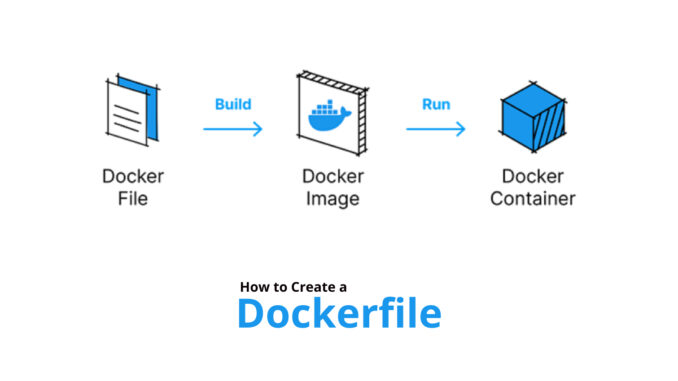
If you are building modern applications, understanding Docker and how to write a dockerfile is essential. At the heart of every Docker image is a Dockerfile, a simple text file that contains the instructions/commands to assemble a Docker image for your application. In this post, I will break down how to write one from scratch, step by step.
What is a Dockerfile?
A Dockerfile is essentially a blueprint/set/script of instructions that tells Docker how to build an image for your application. It defines:
- The base operating system or environment
- Dependencies your application needs
- Commands to copy your code, install packages, and run your application
When Docker reads your Dockerfile, it executes each instruction sequentially, creating a layered image ready to run as a container. Docker caches these layers to speed up future builds.
Basic Dockerfile Instructions and what they do
| Instruction | What it Does | Example |
|---|---|---|
| FROM | Sets the base image to build your image on. Every Dockerfile must start with a FROM (unless it’s a scratch image). | FROM ubuntu:22.04 |
| RUN | Runs a command inside the image during build. Often used to install software. | RUN apt-get update && apt-get install -y curl |
| CMD | Specifies the default command to run when the container starts. Can be overridden by docker run. | CMD ["node", "app.js"] |
| ENTRYPOINT | Sets a fixed command for the container. Often combined with CMD for arguments. | ENTRYPOINT ["python3"] |
| WORKDIR | Sets the working directory inside the container. All subsequent instructions run from here. | WORKDIR /app |
| COPY | Copies files from your local system into the image. | COPY package.json ./ |
| ADD | Like COPY but can also extract tar files or fetch files from URLs. Use COPY if you don’t need these extra features. | ADD app.tar.gz /app/ |
| EXPOSE | Indicates the port(s) the container will listen on. Mostly informational; does not publish the port by itself. | EXPOSE 8080 |
| ENV | Sets environment variables inside the container. | ENV NODE_ENV=production |
| ARG | Defines a build-time variable, which you can use in the Dockerfile but won’t persist in the final image. | ARG APP_VERSION=1.0.0 |
| USER | Switches to a specific user inside the container. | USER node |
| VOLUME | Creates a mount point for external storage or persistent data. | VOLUME /data |
| ONBUILD | Adds a trigger instruction for child images. Useful in base images. | ONBUILD COPY . /app |
Basic Structure/Anatomy of a Dockerfile
Here’s a high-level overview of the most common Dockerfile instructions:
- FROM – Specifies the base image.
- WORKDIR – Sets the working directory inside the container.
- COPY – Copies files from your local system to the container.
- RUN – Executes commands inside the container, such as installing packages.
- EXPOSE – Informs Docker which port the container will listen on.
- CMD or ENTRYPOINT – Defines the default command to run when the container starts.
The general Dockerfile instructions (FROM, RUN, COPY, etc.) are the same for any language, but the way you write a Dockerfile depends on the language, framework, and build process. Each type of application/stack has its own dependencies, build steps, and runtime requirements. A Python application is different from a Laravel PHP application, a Node.js React application, or a .NET application. So the Dockerfile will look different but the same concept. Hence, when you understand one, you can easily understand all.
In this article, we will explore how Dockerfiles vary between Python and Laravel PHP, and why understanding these differences is important. At the end of this lesson, you will know how to write a dockerfile for Laravel PHP applications and how to write a dockerfile for Python applications.
Example 1: Dockerfile for a Python Application
For Python apps, you typically need a Python runtime, dependency installation using pip, and a command to start your application. Here is an example for a simple Flask application
# Base image
FROM python:3.12-slim

# Set working directory
WORKDIR /app

# Copy dependencies first to leverage caching
COPY requirements.txt .

# Install dependencies
RUN pip install --no-cache-dir -r requirements.txt

# Copy application code
COPY . .

# Expose application port
EXPOSE 5000

# Command to run the app
CMD ["python", "app.py"]
Key points:
- Python runtime is the base image.
- Dependencies are installed via
pip. - The container runs
python app.pyto start the app.
Example 2: Dockerfile for a Laravel (PHP) Application
# Base image
FROM php:8.2-fpm

# Set working directory
WORKDIR /var/www/html

# Install system dependencies and PHP extensions
RUN apt-get update && apt-get install -y \
    git unzip libpng-dev libonig-dev libxml2-dev \
    && docker-php-ext-install pdo_mysql mbstring exif pcntl bcmath gd

# Install Composer
COPY --from=composer:2 /usr/bin/composer /usr/bin/composer

# Copy application code
COPY . .

# Install PHP dependencies
RUN composer install --optimize-autoloader --no-dev

# Expose PHP-FPM port
EXPOSE 9000

# Start PHP-FPM
CMD ["php-fpm"]
Key points:
- PHP-FPM runtime is used instead of Python.
- Composer manages dependencies instead of pip.
- PHP extensions are installed to match Laravel’s requirements.
- Typically used with Nginx or Apache in a multi-container setup.
Why Dockerfiles Differ by Stack
| Aspect | Python | Laravel/PHP |
|---|---|---|
| Base Image | python:3.x | php:8.x-fpm |
| Dependency Manager | pip | composer |
| Runtime Command | python app.py | php-fpm |
| Additional Setup | None usually | PHP extensions, sometimes a web server |
| Port | App’s internal port | PHP-FPM port (usually 9000) |
Even though instructions like FROM, RUN, and COPY are universal, the commands inside them change depending on the tech stack. This ensures your container includes everything your app needs to run correctly.
Best Practices Across All Stacks
1. Minimize layers: combine RUN commands with && when possible.
2. Leverage caching: copy dependency files first to avoid reinstalling everything on code changes.
3. Keep images small: use slim or alpine images, remove unnecessary files.
4. Do not hardcode secrets: use environment variables instead.
5. Use multi-stage builds: for production images to reduce size.
Talking about using a multi-stage builds, what does this mean?
What is a Multi-Stage Build in Docker?
A multi-stage build is a way to create smaller, more efficient Docker images by using multiple FROM statements in a single Dockerfile. Each stage can have its own base image, dependencies, and build steps.
The main idea:
- First stage: Build your app, install all development tools, dependencies, and compile code.
- Final stage: Copy only the essential artifacts from the first stage into a clean, minimal image.
This keeps your final image slim/small, secure, and free of unnecessary files like compilers or test dependencies. The final size of your will be reduced. Let’s see how to write a dockerfile for a multi-stage build.
Example 3: Multi-Stage Build for a Python App
# Stage 1: Build
FROM python:3.12-slim AS builder
WORKDIR /app
COPY requirements.txt .
RUN pip install --user -r requirements.txt
COPY . .

# Stage 2: Production
FROM python:3.12-slim
WORKDIR /app

# Copy only installed packages and app code from the builder stage
COPY --from=builder /root/.local /root/.local
COPY --from=builder /app .

# Update PATH to include pip packages
ENV PATH=/root/.local/bin:$PATH

EXPOSE 5000
CMD ["python", "app.py"]
Here is what happens:
- Builder stage: Installs dependencies and prepares the application.
- Final stage: Only copies the installed packages and app code, no development tools, no cache files.
- Result: A much smaller image than if you installed everything in a single stage
Example 4: Multi-Stage Build for a Laravel App
# Stage 1: Build
FROM composer:2 AS builder
WORKDIR /app
COPY composer.json composer.lock ./
RUN composer install --no-dev --optimize-autoloader
COPY . .

# Stage 2: Production
FROM php:8.2-fpm
WORKDIR /var/www/html

# Install PHP extensions needed at runtime
RUN apt-get update && apt-get install -y libpng-dev libonig-dev libxml2-dev \
    && docker-php-ext-install pdo_mysql mbstring exif pcntl bcmath gd

# Copy only the built app and vendor files from builder
COPY --from=builder /app /var/www/html

EXPOSE 9000
CMD ["php-fpm"]
Here:
- Builder stage: Uses Composer to install dependencies.
- Final stage: Only includes the Laravel app and installed vendor packages, without the full Composer image.
- Result: Smaller, production-ready image.
Why Multi-Stage Builds Are Useful
1. Smaller image size: Only the essential files end up in the final image.
2. Cleaner builds: No leftover development tools, caches, or temporary files.
3. Security: Fewer packages and tools mean a smaller attack surface.
4. Consistency: Same Dockerfile can handle both build and production environments.
Ideally, Dockerfiles should be written by developers, as they are closest to the application and understand its dependencies and runtime requirements. However, in organizations where containerization is still evolving, or where developers are not yet familiar with Docker, operations or system administrators often take on the responsibility of creating Dockerfiles.
Action Time
Step By Step Guide of How To Write a Dockerfile – Node.js Application
In this section, I will walk you through how to create a Dockerfile from scratch using Docker’s sample To-Do List application from GitHub. This is the same application used in Docker’s “Getting Started” guide.
1. Clone the Sample Application
We begin by pulling the application code from GitHub:
user1@LinuxSrv:~$ git clone https://github.com/docker/getting-started-app.git

Cloning into 'getting-started'...
remote: Enumerating objects: 987, done.
remote: Counting objects: 100% (13/13), done.
remote: Compressing objects: 100% (12/12), done.
remote: Total 987 (delta 6), reused 1 (delta 1), pack-reused 974 (from 2)
Receiving objects: 100% (987/987), 5.29 MiB | 1.46 MiB/s, done.
Resolving deltas: 100% (524/524), done.
2. View the Project Directory
user1@LinuxSrv:~$ ls

getting-started
3. Navigate Into the Project
user1@LinuxSrv:~$ cd getting-started/
4. Explore the Application Files
user1@LinuxSrv:~/getting-started-app$ ls -l

total 160
-rw-rw-r-- 1 user1 user1    648 Nov 24 13:15 package.json
-rw-rw-r-- 1 user1 user1    269 Nov 24 13:15 README.md
drwxrwxr-x 4 user1 user1   4096 Nov 24 13:15 spec
drwxrwxr-x 5 user1 user1   4096 Nov 24 13:15 src
-rw-rw-r-- 1 user1 user1 147266 Nov 24 13:15 yarn.lock
5. Create the Dockerfile
user1@LinuxSrv:~/getting-started-app$ vi Dockerfile
Inside the Dockerfile, we will add the following instructions step by step, with explanations.
a. Choose a Base Image
FROM node:18-alpine FROM sets the base image.
We picked node:18-alpine because Alpine images are lightweight, making our final image smaller and faster to pull.
b. Set a Working Directory
WORKDIR /appThis creates a folder called /app inside the container and makes it the active working directory.
Every command from this point forward will run inside /app.
c. Copy Source Code Into the Container
COPY . .This copies everything in your local project folder into the /app folder inside the container.
Equivalent to:
- Locally: the current directory
. - In container: the current working directory
/app
d. Install Application Dependencies
RUN yarn install --productionThe RUN instruction executes a command during the image build.
Here, it installs only the production dependencies from package.json.
This prepares the app to run inside the container.
e. Set the Application Startup Command
CMD ["node", "src/index.js"]CMDdefines the default command the container will run when it starts.- In this case, it starts the Node.js application located at
src/index.js.
Unlike RUN, which runs during the image build,CMD runs when the container starts.
f. Expose the Application Port
EXPOSE 3000This tells Docker that the application listens on port 3000.
It does not publish the port automatically, it simply documents it for anyone using the image.
(You still need to run with -p 3000:3000 when starting the container or include it in your Docker compose file except you create a different type of Docker or Kubernetes network that does not need port forwarding)
Final Dockerfile
FROM node:18-alpine
WORKDIR /app
COPY . .
RUN yarn install --production
CMD ["node", "src/index.js"]
EXPOSE 3000
6. Build Your Docker Image with the dockerfile created
user1@LinuxSrv:~/getting-started-app$ docker build -t to-do .

[+] Building 17.5s (4/8)                                                                                      docker:default
 => [internal] load build definition from Dockerfile                                                                    0.0s
...........................
7. View Your Built Image
user1@LinuxSrv:~/getting-started-app$ sudo docker images
                                                                                                         i Info →   U  In Use
IMAGE                ID             DISK USAGE   CONTENT SIZE   EXTRA

hello-world:latest   f7931603f70e       20.3kB         3.96kB    U
to-do:latest         cceee9429622        346MB         85.8MB
All Docker images on your machine are stored under:
/var/lib/docker (You normally don’t need to touch this directory manually.)
Step By Step Guide of How To Write a Dockerfile (Multi-Stage) – Node.js Application
Now let’s write a multi-stage Dockerfile for the above
#############################
# Stage 1 — Install dependencies
#############################
FROM node:18-alpine AS installer
WORKDIR /app

# Copy only package.json & package-lock (better caching)
COPY package*.json ./

RUN npm install --production

# Copy the rest of the source code
COPY . .

#############################
# Stage 2 — Runtime image
#############################
FROM node:18-alpine AS deployer
WORKDIR /app

# Copy only required files from installer stage
COPY --from=installer /app /app

EXPOSE 3000
Step-by-step explanation
Stage 1: installer (Dependency Installation Stage)
FROM node:18-alpine AS installer
Starts a new stage named installer using Node 18 Alpine.
Alpine is lightweight, reducing image size.
WORKDIR /app
Sets /app as the working directory. All further commands run inside this folder.
COPY package*.json ./
Copies:
package.jsonpackage-lock.json(if it exists)
This is important because Docker can cache this step.
Dependencies only reinstall when these files change.
RUN npm install --production
Installs only production dependencies (no dev tools, no test frameworks).
This makes the final image slimmer.
COPY . .
Copies the rest of your application code into the image:
/src- configuration files
- routes
- controllers
- anything required to run your Node.js backend
At this point, the installer stage contains:
- your full backend application
- your production node_modules
- the Node runtime (but this runtime is not carried into the final image)
Stage 2 — deployer (Final Runtime Image)
FROM node:18-alpine AS deployer
Starts a completely fresh image—also Node Alpine.
This image does NOT include:
- build dependencies
- cached layers
- leftover temporary files
Making it smaller and cleaner.
WORKDIR /app
Same application directory.
COPY --from=installer /app /app
This is the magic moment of the multi-stage build.
Instead of copying your full source code from your local machine,
you inherit only the processed result from the previous stage:
Build Your Docker Image
user1@LinuxSrv:~/getting-started-app$ rm -rf Dockerfile
user1@LinuxSrv:~/getting-started-app$ vi Dockerfile

#############################
# Stage 1 — Install dependencies
#############################
FROM node:18-alpine AS installer
WORKDIR /app

# Copy only package.json & package-lock (better caching)
COPY package*.json ./

RUN npm install --production

# Copy the rest of the source code
COPY . .

#############################
# Stage 2 — Runtime image
#############################
FROM node:18-alpine AS deployer
WORKDIR /app

# Copy only required files from installer stage
COPY --from=installer /app /app

EXPOSE 3000
user1@LinuxSrv:~/getting-started-app$ docker build -t to-do:01 .

[+] Building 278.4s (11/11) FINISHED                                                                          docker:default
 => [internal] load build definition from Dockerfile                                                                    0.0s
 => => transferring dockerfile: 593B                                                                                    0.0s
...........................
View Your Built Image
user1@LinuxSrv:~/getting-started-app$ docker images
                                                                                                         i Info →   U  In Use
IMAGE                ID             DISK USAGE   CONTENT SIZE   EXTRA
to-do:01             135ead5aa349        223MB         55.7MB
to-do:latest         cceee9429622        346MB         85.8MB
Step By Step Guide of How To Write a Dockerfile – Laravel / PHP
Having written a Dockerfile for a Node.JS application ( single and multi-stage), the next ecosystem worth covering is Laravel (PHP) which has a slightly different workflow. I am going to use the Laravel application one of my friends developed.
Laravel apps require:
- Correct Linux permissions
- Apache or Nginx
- PHP runtime (usually php:8.x-apache or php:fpm)
- PHP extensions (pdo, pdo_mysql, gd, zip, intl, etc.)
- Composer for dependency installation
- Proper document root pointing to
/public
Laravel Single-Stage Dockerfile (Basic Production Image)
FROM php:8.1-apache

# --- Install system packages in smaller steps ---
RUN apt-get update

RUN apt-get install -y --no-install-recommends \
    libfreetype6-dev \
    libjpeg62-turbo-dev \
    libpng-dev

RUN apt-get install -y --no-install-recommends \
    libzip-dev \
    zip

# --- Configure & install PHP extensions ---
RUN docker-php-ext-configure gd --with-freetype --with-jpeg

# Install all PHP extensions required for your project
RUN docker-php-ext-install gd pdo pdo_mysql zip

# Enable Apache mod_rewrite
RUN a2enmod rewrite

# Set working directory
WORKDIR /var/www/html

# --- Copy the entire application code first ---
COPY . .

# Install Composer from official image
COPY --from=composer:2 /usr/bin/composer /usr/bin/composer

# Install PHP dependencies
RUN composer install --no-dev --optimize-autoloader

# Change Apache document root to /public
ENV APACHE_DOCUMENT_ROOT=/var/www/html/public

RUN sed -ri -e 's!/var/www/html!${APACHE_DOCUMENT_ROOT}!g' /etc/apache2/sites-available/*.conf
RUN sed -ri -e 's!/var/www/!${APACHE_DOCUMENT_ROOT}!g' /etc/apache2/apache2.conf /etc/apache2/conf-available/*.conf

# Fix permissions
RUN chown -R www-data:www-data /var/www/html
Step-By-Step Explanation — Laravel Single Stage
1. Base Image
FROM php:8.1-apache
We use the official PHP image bundled with Apache so the app can run immediately.
2. Install system libraries
Laravel requires GD, Zip, MySQL support, etc.
3. Enable PHP Extensions
docker-php-ext-install gd pdo pdo_mysql zip
These extensions power image processing (GD), database connections (PDO), and compression (zip).
4. Apache Rewrite Engine
Laravel uses clean URLs, so mod_rewrite must be enabled.
5. Copy Laravel code
Your full application source code goes into the container under /var/www/html.
6. Composer
We copy Composer from its official image and run:
composer install --no-dev --optimize-autoloader
7. Configure Apache document root
Laravel’s public entrypoint is /public.
8. Fix permissions
Laravel needs proper write access to:
/storage/bootstrap/cache
So we fix ownership.
Now Let’s Do It the Proper Way – Laravel Multi-Stage Dockerfile
This produces a much smaller, much cleaner, production-ready image.
It is similar to the concept you used for a Node.js multi-stage build.
# --------------------------
# STAGE 1 — Build
# --------------------------
FROM php:8.1-apache AS build

# --------------------------
# STEP 1 — apt-get update
# --------------------------
RUN apt-get update

# --------------------------
# STEP 2 — install GD deps
# --------------------------
RUN apt-get install -y --no-install-recommends \
    libfreetype6-dev \
    libjpeg62-turbo-dev \
    libpng-dev

# --------------------------
# STEP 3 — install ZIP deps
# --------------------------
RUN apt-get install -y --no-install-recommends \
    libzip-dev zip

# --------------------------
# STEP 4 — install git/unzip
# --------------------------
RUN apt-get install -y --no-install-recommends git unzip

# --------------------------
# STEP 5 — configure gd
# --------------------------
RUN docker-php-ext-configure gd --with-freetype --with-jpeg

# --------------------------
# STEP 6 — install extensions (1 by 1 to save memory)
# --------------------------
RUN docker-php-ext-install gd
RUN docker-php-ext-install pdo
RUN docker-php-ext-install pdo_mysql
RUN docker-php-ext-install zip

# --------------------------
# STEP 7 — install Intl extension
# --------------------------
RUN apt-get install -y --no-install-recommends libicu-dev \
    && docker-php-ext-install intl

# --------------------------
# STEP 8 — clean up apt cache
# --------------------------
RUN apt-get clean && rm -rf /var/lib/apt/lists/*

# --------------------------
# STEP 9 — set Git safe.directory
# --------------------------
RUN git config --global --add safe.directory /var/www/html

# --------------------------
# STEP 10 — composer + app
# --------------------------
WORKDIR /var/www/html
COPY . .
COPY --from=composer:2 /usr/bin/composer /usr/bin/composer

RUN COMPOSER_MEMORY_LIMIT=-1 composer install --no-dev --optimize-autoloader --prefer-dist

# --------------------------
# STAGE 2 — final runtime image
# --------------------------
FROM php:8.1-apache

RUN a2enmod rewrite
WORKDIR /var/www/html

# Copy PHP extensions and configs from build stage
COPY --from=build /usr/local/lib/php/extensions /usr/local/lib/php/extensions
COPY --from=build /usr/local/etc/php/conf.d /usr/local/etc/php/conf.d

# Copy Laravel app from build stage
COPY --from=build /var/www/html /var/www/html

# Set Apache document root
ENV APACHE_DOCUMENT_ROOT=/var/www/html/public

RUN sed -ri -e 's!/var/www/html!${APACHE_DOCUMENT_ROOT}!g' /etc/apache2/sites-available/*.conf \
 && sed -ri -e 's!/var/www/!${APACHE_DOCUMENT_ROOT}!g' /etc/apache2/apache2.conf /etc/apache2/conf-available/*.conf

RUN chown -R www-data:www-data /var/www/html
Step-By-Step Explanation – Laravel Multi-Stage Build
Now let’s break it down like the Node.js multi-stage explanation.
Stage 1: Build Stage (AS build)
This is where we:
- install system packages
- install PHP extensions
- copy source code
- install Composer dependencies
- prepare the optimized Laravel application
Everything heavy happens here so the final runtime container remains clean.
Step 1: Update apt
Downloads fresh package lists.
Step 2–7: Install all PHP extensions required by Laravel
Extensions include:
- gd (image processing)
- pdo, pdo_mysql (database)
- zip (compression)
- intl (string manipulation / locale support)
They are installed one-by-one to reduce memory use during Docker builds.
Step 8: Clean apt cache
Makes the final image much smaller.
Step 10: Install Composer dependencies
We copy Composer from another image and run:
composer install --no-dev --optimize-autoloader
This:
✔ removes dev dependencies
✔ optimizes autoloading
✔ produces a faster runtime container
Stage 2: The Final Runtime Stage
This stage uses php:8.1-apache again but WITHOUT:
- dev tools
- build dependencies
- temp files
- node_modules
- compilers
We only copy the final optimized Laravel app from stage 1.
Copy PHP extensions
The build stage compiled all extensions, so we reuse them.
Copy Laravel optimized code
This ensures the final runtime image contains:
- your Laravel app
- vendor folder (Production-optimized)
- php.ini configs
- PHP extensions
- Apache
Nothing else.
Set correct document root
Laravel runs from /public.
Fix permissions
Apache user www-data must own the app to avoid 500 errors.
Build Your Docker Image
user1@LinuxSrv:~$ cd mnet user1@LinuxSrv:~/mnet$ docker build -t mnet .View the built Image
user1@LinuxSrv:~/getting-started-app$ docker images
                                                                                                         i Info →   U  In Use
IMAGE                ID             DISK USAGE   CONTENT SIZE   EXTRA
mnet:latest         bcf22e1130d3          1GB          246MB
to-do:01             135ead5aa349        223MB         55.7MB
to-do:latest         cceee9429622        346MB         85.8MB
After writing a dockerfile, and building a docker Image, the next step is to push the image to a registry/repository which is what we are going to do in our next lesson
In conclusion, in this lesson , we have learnt how to write a dockerfile for single-stage build and how to write a dockerfile for multi-stage build. We have also seen how to build a docker image from a dockerfile.
Leave a Reply