Last updated: September 2026
In this lesson, we will look at Kubernetes Troubleshooting: Powerful Ways to Fix Evicted Pods
Understanding The Subject Matter
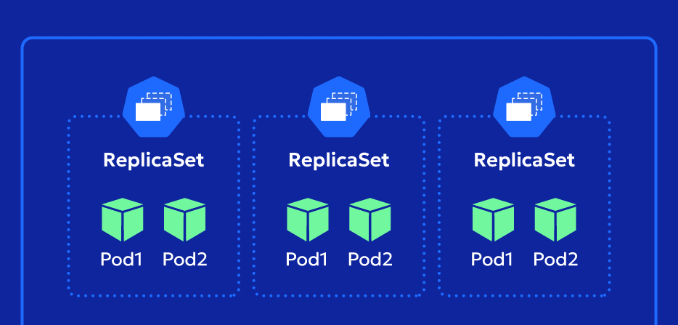
When working with Kubernetes, you will frequently come across Deployments, ReplicaSets, and Pods. Although they are closely related, they serve different purposes.
A common source of confusion is seeing multiple ReplicaSets for a single Deployment or finding an old Pod in a Failed or Evicted state even though the Deployment shows that all replicas are healthy.
In this article, we will look at what Deployments, ReplicaSets, and Pods are, how they relate to one another, why a Deployment can have multiple ReplicaSets, and how to investigate and clean up old Pods and ReplicaSets.
What is a Kubernetes Resource or Object?
In Kubernetes, a resource or object or component is an entity that Kubernetes manages.
Some common Kubernetes resources include:
- Pod
- Deployment
- ReplicaSet
- Service
- ConfigMap
- Secret
- Namespace
- Node
- StatefulSet
- DaemonSet
You can interact with these resources using the kubectl command.
For example:
kubectl get pods
kubectl get deployments
kubectl get replicasets
kubectl get services
A ReplicaSet is therefore best described as a Kubernetes resource or object.
What is a Pod?
A Pod is the smallest deployable unit in Kubernetes.
A Pod normally contains one application container, although a Pod can contain multiple containers when required.
For example, an application called music-subscription-api could have Pods such as:
music-subscription-api-65869fd6cd-bdj2t
music-subscription-api-65869fd6cd-jw9xv
music-subscription-api-65869fd6cd-tnc47
If the application requires three replicas, Kubernetes attempts to keep three Pods running.
You can see the Pods in a namespace with:
kubectl get pods -n music-prodWhat is a ReplicaSet?
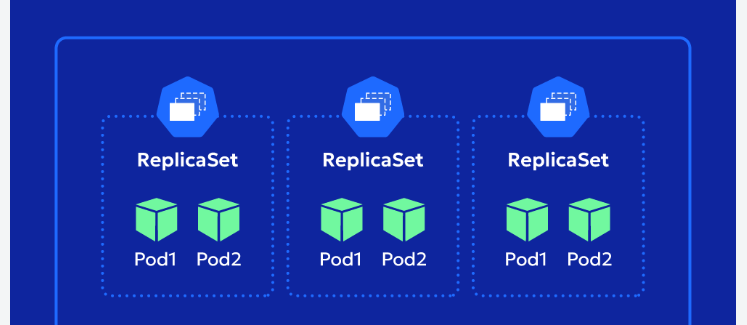
A ReplicaSet is a Kubernetes resource that ensures a specified number of identical Pods are running.
For example, if a ReplicaSet has:
spec:
  replicas: 3
the ReplicaSet attempts to maintain three Pods that match its Pod template.
The relationship can be represented as:
ReplicaSet
    |
    +--- Pod
    |
    +--- Pod
    |
    +--- Pod
If one of those Pods is deleted or otherwise disappears, the ReplicaSet attempts to create another Pod to maintain the desired number of replicas.
What is a Deployment?
A Deployment is also a Kubernetes resource.
A Deployment provides a higher-level mechanism for managing application releases and ReplicaSets.
The relationship is:
Deployment
     |
     | manages
     v
ReplicaSet
     |
     | manages
     v
Pods
For example:
Deployment
music-subscription-api
        |
        v
ReplicaSet
music-subscription-api-65869fd6cd
        |
        +--- Pod
        +--- Pod
        +--- Pod
If the Deployment specifies three replicas, the active ReplicaSet will ultimately maintain three Pods.
Does a ReplicaSet Change?
This is an important concept.
A ReplicaSet does not normally change its identity into another ReplicaSet.
Instead, when the Pod template of a Deployment changes, Kubernetes creates a new ReplicaSet.
For example, suppose a Deployment initially uses:
application:v1Kubernetes creates a ReplicaSet for that Pod template.
If the Deployment is later changed to:
application:v2the Pod template has changed.
Kubernetes creates another ReplicaSet for the new version.
The Deployment can therefore have:
Deployment
    |
    +--- Old ReplicaSet
    |       |
    |       +--- Old Pods
    |
    +--- New ReplicaSet
            |
            +--- New Pods
During a rolling update, the Deployment scales down the old ReplicaSet while scaling up the new ReplicaSet.
Eventually:
Deployment
    |
    +--- Old ReplicaSet       0 Pods
    |
    +--- New ReplicaSet       3 Pods
The old ReplicaSet does not become the new ReplicaSet. The Deployment creates a new ReplicaSet.
Why Do ReplicaSets Have Hashes?
When you run:
kubectl get rsyou may see names such as:
music-subscription-api-65869fd6cd
music-subscription-api-6b5f6d7f96
music-subscription-api-698fd7ff96
The characters at the end of the name are associated with the Pod template.
For example:
music-subscription-api-65869fd6cd
                       ^^^^^^^^^^
                       template hash
When the Pod template changes, the hash changes and a new ReplicaSet is created.
This is why you can have several ReplicaSets belonging to the same Deployment.
Why Can One Deployment Have Multiple ReplicaSets?
A Deployment keeps rollout history.
For example:
Deployment
    |
    +--- ReplicaSet 1     0 Pods
    +--- ReplicaSet 2     0 Pods
    +--- ReplicaSet 3     0 Pods
    +--- ReplicaSet 4     0 Pods
    +--- ReplicaSet 5     3 Pods
Only the current ReplicaSet may have active Pods.
The older ReplicaSets can remain with:
DESIRED   CURRENT   READY
0         0         0
These old ReplicaSets form part of the Deployment’s rollout history and can be useful when investigating previous versions or performing a rollback.
Understanding DESIRED, CURRENT and READY
When you run:
kubectl get rsyou may see:
DESIRED   CURRENT   READY
3         3         3
DESIRED is the number of Pods the ReplicaSet wants.
CURRENT is the number of Pods currently associated with the ReplicaSet.
READY is the number of Pods that are currently ready.
Therefore:
DESIRED   CURRENT   READY
3         3         3
means the ReplicaSet wants three Pods, has three Pods, and all three are ready.
An old ReplicaSet may show:
DESIRED   CURRENT   READY
0         0         0
This does not mean that the ReplicaSet is broken. It means that the Deployment is no longer using it to maintain active replicas.
Understanding an Old Failed or Evicted Pod
You may sometimes run:
kubectl get pods -n music-prodand find something similar to:
NAME                                  READY   STATUS    RESTARTS   AGE
music-subscription-api-65869fd6cd-a1  1/1     Running   0          18d
music-subscription-api-65869fd6cd-b2  1/1     Running   0          18d
music-subscription-api-65869fd6cd-c3  1/1     Running   0          18d
music-subscription-api-6b5f6d7f96-x4   0/1     Error     0          22d
At first, it may appear that the Deployment has four Pods.
However, look at the hash in the Pod names.
The three running Pods belong to:
65869fd6cdwhile the failed Pod belongs to:
6b5f6d7f96These are two different ReplicaSets.
You can confirm this by describing the old Pod:
kubectl describe pod music-subscription-api-6b5f6d7f96-x4 \
-n music-prod
You may see:
Status:       Failed
Reason:       Evicted
and:
Controlled By: ReplicaSet/music-subscription-api-6b5f6d7f96This tells you that the Pod belonged to an older ReplicaSet.
Understanding Pod Eviction (Kubernetes Troubleshooting: Powerful Ways to Fix Evicted Pod)
A Pod can be evicted when the node hosting it comes under resource pressure.
One example is ephemeral-storage pressure.
You may see:
Reason:  Evicted

Message:
The node was low on resource: ephemeral-storage.
Ephemeral storage can include:
- Container writable layers
- Container logs
- Temporary files
emptyDirvolumes- Container runtime storage
- Container images and related data
The sequence can therefore look like this:
Node runs low on ephemeral storage
              |
              v
Kubernetes detects resource pressure
              |
              v
Pod is selected for eviction
              |
              v
Container is terminated
              |
              v
Pod becomes Failed/Evicted
An eviction caused by ephemeral-storage pressure is therefore different from an application crashing because of an application error.
Understanding Exit Code 143
When investigating an evicted Pod, you may see:
Exit Code: 143Exit code 143 corresponds to:
128 + 15 = SIGTERMSIGTERM is a termination signal.
Therefore, when you see exit code 143 together with:
Status: Failed
Reason: Evicted
you should consider the Pod eviction event rather than immediately concluding that the application itself crashed.
Action Time
Now let’s look at this from a practical Kubernetes administration perspective.
Assume the application is:
music-subscription-apiand the namespace is:
music-prodThe Kubernetes CLI is represented by k.
Check the Deployment
First, check the Deployment:
[tekneed_Victor@k8scli01 ~]$ k get deployment music-subscription-api -n music-prodExample output:
NAME                  READY   UP-TO-DATE   AVAILABLE   AGE
music-subscription-api 3/3     3            3           76d
This tells us that the Deployment currently has:
3/3 Ready
3 Up-to-date
3 Available
So the Deployment currently has three healthy available replicas.
Check the Pods
Next, list the Pods belonging to the application:
[tekneed_Victor@k8scli01 ~]$ k get pods -n music-prod | grep music-subscription-apiExample output:
music-subscription-api-65869fd6cd-a1   1/1   Running   0   18d
music-subscription-api-65869fd6cd-b2   1/1   Running   0   18d
music-subscription-api-65869fd6cd-c3   1/1   Running   0   18d
music-subscription-api-6b5f6d7f96-x4    0/1   Error     0   22d
At this point, we have four Pods displayed, but the Deployment says 3/3.
This is where the ReplicaSet becomes important.
Notice the hashes:
65869fd6cdand:
6b5f6d7f96The three running Pods belong to one ReplicaSet, while the failed Pod belongs to another.
Find the ReplicaSets
Run:
[tekneed_Victor@k8scli01 ~]$ k get rs -n music-prod | grep music-subscription-apiExample output:
NAME                           DESIRED   CURRENT   READY   AGE
music-subscription-api-5d4d687b49   0         0         0       76d
music-subscription-api-698fd7ff96   0         0         0       54d
music-subscription-api-6b5f6d7f96   0         0         0       22d
music-subscription-api-6b99b44568   0         0         0       35d
music-subscription-api-74db6c9d87   0         0         0       19d
music-subscription-api-65869fd6cd   3         3         3       18d
Now the picture is much clearer.
The current ReplicaSet is:
music-subscription-api-65869fd6cdbecause it has:
DESIRED   CURRENT   READY
3         3         3
The old ReplicaSets have:
0 0 0This means they are no longer maintaining active Pods.
Find Which ReplicaSet Owns a Pod
To find out which ReplicaSet owns the old Pod, describe it:
[tekneed_Victor@k8scli01 ~]$ k describe pod music-subscription-api-6b5f6d7f96-x4 \
-n music-prod
Look for:
Controlled By: ReplicaSet/music-subscription-api-6b5f6d7f96This tells us that the Pod belongs to:
music-subscription-api-6b5f6d7f96which is an old ReplicaSet.
Investigate Why the Pod Failed
Continue looking at the Pod description:
k describe pod music-subscription-api-6b5f6d7f96-x4 \
-n music-prod
You may find:
Status:           Failed
Reason:           Evicted
Message:          The node was low on resource: ephemeral-storage.
This tells us that the Pod was not simply an old Pod that stopped working by itself.
It was evicted by Kubernetes because the node was experiencing ephemeral-storage pressure.
You can also check the node on which the Pod was running:
k get pod music-subscription-api-6b5f6d7f96-x4 \
-n music-prod -o wide
Example:
NAME                                READY   STATUS   NODE
music-subscription-api-6b5f6d7f96-x4 0/1     Error    worker-node-03
Then inspect the node:
k describe node worker-node-03Look for conditions such as:
DiskPressureand related node events.
Check Deployment Rollout History
You can also check the Deployment’s rollout history:
[tekneed_Victor@k8scli01 ~]$ k rollout history deployment/music-subscription-api \
-n music-prod
Example:
deployment.apps/music-subscription-api
REVISION  CHANGE-CAUSE
1         <none>
2         <none>
3         <none>
4         <none>
5         <none>
6         <none>
The <none> value means that a change cause was not recorded for those revisions.
The existence of multiple revisions, however, shows that the Deployment has had multiple rollout versions.
Count Pods That Are Not Running
To see Pods whose phase is not Running across all namespaces:
[tekneed_Victor@k8scli01 ~]$ k get pods -A \
--field-selector=status.phase!=Running \
--no-headers | wc -l
To list them:
[tekneed_Victor@k8scli01 ~]$ k get pods -A \
--field-selector=status.phase!=Running
Example:
NAMESPACE     NAME                         READY   STATUS
music-prod    music-api-abc123             0/1     Pending
billing-prod  billing-api-xyz456           0/1     Failed
test-prod     test-api-def789              0/1     Succeeded
This is useful when investigating Pods that are no longer in the Running phase.
However, remember that a Pod can have a Running phase while one or more of its containers are not ready. Therefore, the READY column should also be considered during troubleshooting.
Delete an Old Failed Pod
If you have established that the Pod is an old failed/evicted Pod and is no longer required, you can remove it:
[tekneed_Victor@k8scli01 ~]$ k delete pod music-subscription-api-6b5f6d7f96-x4 \
-n music-prod
If the Pod belongs to an old ReplicaSet whose desired replica count is already zero, deleting the old Pod does not affect the current running replicas.
Verify:
[tekneed_Victor@k8scli01 ~]$ k get pods -n music-prod | grep music-subscription-apiYou should see the current Pods only:
music-subscription-api-65869fd6cd-a1   1/1   Running
music-subscription-api-65869fd6cd-b2   1/1   Running
music-subscription-api-65869fd6cd-c3   1/1   Running
Delete an Old ReplicaSet
You can also remove an old ReplicaSet when you have established that it is no longer being used.
First check:
[tekneed_Victor@k8scli01 ~]$ k get rs music-subscription-api-6b5f6d7f96 \
-n music-prod
Example:
NAME                           DESIRED   CURRENT   READY   AGE
music-subscription-api-6b5f6d7f96   0         0         0       22d
Because it has:
DESIRED   CURRENT   READY
0         0         0
it is not currently maintaining application Pods.
It can therefore be deleted if you intentionally want to remove that old rollout version:
[tekneed_Victor@k8scli01 ~]$ k delete rs music-subscription-api-6b5f6d7f96 \
-n music-prod
This does not delete the current ReplicaSet:
music-subscription-api-65869fd6cdand does not affect its three running Pods.
Keep in mind that deleting an old ReplicaSet also removes that rollout version from the Deployment’s available history.
Final Summary
The relationship between these three Kubernetes resources is:
Deployment
     |
     | manages
     v
ReplicaSet
     |
     | maintains
     v
Pods
     |
     | run
     v
Containers
A Pod runs the application.
A ReplicaSet ensures that the required number of matching Pods exist.
A Deployment manages ReplicaSets and application rollouts.
When the Pod template changes, the Deployment creates a new ReplicaSet rather than changing the identity of the existing ReplicaSet.
This is why one Deployment can have several ReplicaSets:
Deployment
    |
    +--- Old ReplicaSet       0/0/0
    +--- Old ReplicaSet       0/0/0
    +--- Old ReplicaSet       0/0/0
    |
    +--- Current ReplicaSet  3/3/3
             |
             +--- Pod        Running
             +--- Pod        Running
             +--- Pod        Running
Therefore, seeing several ReplicaSets for a Deployment is normal.
Likewise, finding an old Failed or Evicted Pod does not necessarily mean that the application is currently unhealthy. Check which ReplicaSet owns the Pod and whether that ReplicaSet is still active before taking action.
Leave a Reply