Last updated: January 2026
Understanding Docker storage is key to designing reliable, production-ready containerized applications. While containers are lightweight and fast, their storage model is carefully designed to provide efficiency, isolation, and data deduplication.
In this blog, we’ll walk through:
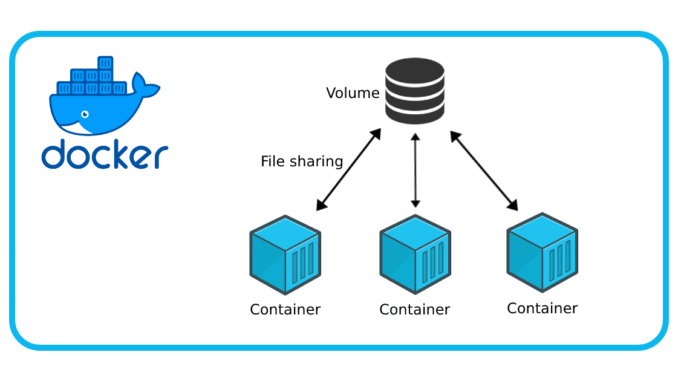
- How to make container data persistent using volumes
- How containers share image storage
- How read-only (R/O) and read-write (R/W) layers work
- How Docker achieves file isolation
- Why containers are ephemeral
Docker Images as Filesystems
A Docker image is not just an application, it acts as a filesystem template for containers.
- Docker images are built from multiple read-only (R/O) layers (when you build an application/image, Each instruction in a Dockerfile (such as
FROM,RUN,COPY, orADD) creates a new layer on top of the previous one. These layers are stacked together to form the final image. - Once the build is complete, the image itself is immutable (read-only). When a container is started from the image, Docker adds a thin writable layer on top of these read-only layers, allowing the container to make changes without modifying the original image.
- Each layer represents a filesystem change (e.g., installing packages, copying files)
- These layers are stacked together to form the image filesystem
These image layers are shared across containers, which is why Docker is so space-efficient.
Think of a Docker image as a frozen, read-only filesystem blueprint. Docker Images are read-only files that acts as read-only filesystems for their respective containers.
Read-Only and Read-Write Layers Explained
When a container is started from an image (Read-Only layer), Docker adds one extra layer on top (Read-Write layer):
– Read-Only Layer (Underlay)
- Comes from the Docker image
- Shared by all containers using that image
- Cannot be modified by containers
Containers can share the same Docker image as their read-only filesystem.
When multiple containers are created from the same image on the same Linux host, they all share the same read-only (R/O) layers of that image.
Let’s look at the images on the system:
user1@LinuxSrv:~$ docker images
                                                                                                                                                                                                                         i Info →   U  In Use
IMAGE                               ID             DISK USAGE   CONTENT SIZE   EXTRA
busybox:latest                      e3652a00a2fa       6.78MB         2.21MB    U
hello-world:latest                  f7931603f70e       20.3kB         3.96kB    U
nginx:latest                        553f64aecdc3        225MB         59.8MB    U
Now, let’s create multiple containers from the same NGINX image:
user1@LinuxSrv:~$ docker run -d --name web6 nginx

e6d946ca778272807416e37f224745d7808a4af7bf3daad7acab6cbbacdba543
user1@LinuxSrv:~$ docker run -d --name web7 nginx

b182ce22956f4e7de32d4692a97d3ba09ee23c20a6fcd304007ea31d19ca679b
Check running containers:
user1@LinuxSrv:~$ docker ps -a

CONTAINER ID   IMAGE         COMMAND                  CREATED          STATUS                   PORTS                NAMES
b182ce22956f   nginx         "/docker-entrypoint.…"   54 seconds ago   Up 53 seconds            80/tcp               web7
e6d946ca7782   nginx         "/docker-entrypoint.…"   2 minutes ago    Up 2 minutes             80/tcp               web6
Check the Docker storage status
user1@LinuxSrv:~$ docker ps -s

CONTAINER ID   IMAGE     COMMAND                  CREATED         STATUS         PORTS                NAMES     SIZE
b182ce22956f   nginx     "/docker-entrypoint.…"   3 minutes ago   Up 3 minutes   80/tcp               web7      81.9kB (virtual 165MB)
e6d946ca7782   nginx     "/docker-entrypoint.…"   4 minutes ago   Up 4 minutes   80/tcp               web6      81.9kB (virtual 165MB)

Important Observation
If you look carefully at this output above:
- The virtual size (165MB) represents the image (R/O layers)
- The actual container size (~81KB) represents the container’s R/W layer which is basically 0 Bytes
You can see that these two containers aren’t consuming any space. Both containers are sharing the same read-only filesystem provided by the NGINX image, and this is a good data deduplication process by Docker
Even if you run 10, 50, or 100 containers from the same image, the image is stored only once on disk and the containers will always be approximately 0 Bytes
Now let’s talk about the Read-Write layer
– Read-Write Layer (Overlay)
- Created per container
- This is the only writable layer
- Stores all runtime changes (logs, temp files, config edits)
Every container has its own unique, dedicated R/W layer.
This R/W layer:
- Is stored in a unique directory on the underlying Linux guest OS by default except specified otherwise
- Belongs to one container only
- Is isolated from other containers
Now let’s see how containers can still have their own unique files and directories.
First, connect to the web6 container and create a directory:
user1@LinuxSrv:~$ docker exec -it web6 bash
root@e6d946ca7782:/#
root@e6d946ca7782:/# ls
bin boot dev docker-entrypoint.d docker-entrypoint.sh etc home lib lib64 media mnt opt proc root run sbin srv sys tmp usr var
Create a directory inside the container
root@e6d946ca7782:/# mkdir tekneed1
root@e6d946ca7782:/# ls

bin  boot  dev  docker-entrypoint.d  docker-entrypoint.sh  etc  home  lib  lib64  media  mnt  opt  proc  root  run  sbin  srv  sys  tekneed1  tmp  usr  var
You can see the tekneed1 directory inside web6.
Now exit and connect to web7 Container:
root@e6d946ca7782:/# exit
exit
user1@LinuxSrv:~$
Connect to web7 container
user1@LinuxSrv:~$ docker exec -it web7 bash
root@b182ce22956f:/#
root@b182ce22956f:/# ls
bin boot dev docker-entrypoint.d docker-entrypoint.sh etc home lib lib64 media mnt opt proc root run sbin srv sys tmp usr var
Notice that tekneed1 file does NOT exist in web7 container.
Docker Storage Usage After Writing Data
Check storage usage again:
user1@LinuxSrv:~$ docker ps -s

CONTAINER ID   IMAGE     COMMAND                  CREATED             STATUS             PORTS                NAMES     SIZE
b182ce22956f   nginx     "/docker-entrypoint.…"   About an hour ago   Up About an hour   80/tcp               web7      90.1kB (virtual 165MB)
e6d946ca7782   nginx     "/docker-entrypoint.…"   About an hour ago   Up About an hour   80/tcp               web6      94.2kB (virtual 165MB)

Notice:
- The
web6container is slightly larger because of the new directory - If
tekneed1were a large file, the size would increase further and very visible - Virtual size = R/O layer + R/W layer
Now we can see how files are isolated if an image is shared between or amongst containers – The R/W layer comes into play
The Merged / Unified Filesystem View
Although Docker uses multiple layers, containers don’t see them separately.
Docker presents a merged (or unified) view of:
- The R/O image layers (underlay)
- The container’s R/W layer (overlay)
This merged filesystem is what the container interacts with. Docker merges both layers to create a single unified filesystem view for the container.
From inside the container:
- It looks like a single normal Linux filesystem
- Reads come from the image layers
- Writes go to the container’s R/W layer
How Containers Use Storage on the Linux Host
All Docker storage ultimately lives on the underlying Linux guest OS.
- Docker uses a storage driver (commonly
overlay2) - Each image and container maps to directories under:
/var/lib/docker/ - The container’s R/W layer is stored as a directory managed by the storage driver
So while containers feel isolated, they are efficiently sharing the host’s disk through layered filesystems.
What Happens When a Container Is Deleted?
By default:
- When a container is removed, its R/W layer is deleted
- All data written inside the container is lost
This is why containers are often described as ephemeral. and the reason why one needs to understand how Docker Storage works.
Making the R/W Layer Persistent With Examples
To persist data beyond the container lifecycle, Docker provides external storage mechanisms:
1. Volumes (Recommended)
- Managed by Docker
- Stored outside the container’s R/W layer
- Survive container deletion
docker volume create mydata
docker run -v mydata:/app/data myimage
2. Bind Mounts
- Map a host directory directly into a container
- Useful for development and debugging
docker run -v /host/path:/container/path myimage
With volumes or bind mounts:
- Data is no longer tied to the container’s R/W layer
- Containers can be recreated without data loss
Now let’s see how we can make data persistent with volumes
Let’s create a volume:
user1@LinuxSrv:~$ docker volume create tekneed-volume

tekneed-volume
List Volumes:
user1@LinuxSrv:~$ docker volume ls

DRIVER    VOLUME NAME
local     tekneed-volume
Now we can see a volume created with the local volume driver
Docker volumes are stored by default under:
/var/lib/docker/volumes/Verify on the hosts:
user1@LinuxSrv:~$ sudo ls -l /var/lib/docker/

total 40
drwx--x--x  5 root root 4096 Nov 13 17:22 buildkit
drwx--x--- 12 root root 4096 Dec 29 12:43 containers
-rw-------  1 root root   36 Nov 13 12:01 engine-id
drwxr-x---  3 root root 4096 Nov 13 12:01 network
drwx------  3 root root 4096 Nov 13 12:01 plugins
drwx--x---  3 root root 4096 Nov 13 12:05 rootfs
drwx------  2 root root 4096 Nov 19 18:00 runtimes
drwx------  2 root root 4096 Nov 13 12:01 swarm
drwx------  2 root root 4096 Nov 24 15:49 tmp
drwx-----x  3 root root 4096 Dec 29 16:05 volumes
user1@LinuxSrv:~$ sudo ls -l /var/lib/docker/volumes
total 28
brw------- 1 root root 252, 0 Nov 19 18:00 backingFsBlockDev
-rw------- 1 root root 32768 Dec 29 16:05 metadata.db
drwx-----x 3 root root 4096 Dec 29 16:05 tekneed-volume
All data written to the volume will live here independently of containers
Using the Volume with a Container
Remove and recreate the web6 container with the volume attached:
user1@LinuxSrv:~$ docker rm web6

Error response from daemon: cannot remove container "web6": container is running: stop the container before removing or force remove

user1@LinuxSrv:~$ docker rm -f web6

web6
user1@LinuxSrv:~$ docker run -v tekneed-volume:/docker-entrypoint.d -d –name web6 nginx
67ea880a8cc6f7852d7a75694ad2590684f5dfe0f92d1953b93b98bc4771412c
Now:
- Data written to
/docker-entrypoint.dis stored in the volume - Deleting the container does not delete the data
Pro tip (NGINX-specific)
For NGINX, volumes are more commonly mounted to:
/usr/share/nginx/html
/etc/nginx/conf.d
Example:
docker run -v tekneed-volume:/usr/share/nginx/html -d --name web6 nginxI just did this for the sake of understanding the concept
This example was done purely to understand the concept of Docker storage and persistence. Understanding Docker Storage is imperative to effectively manage Docker and even Docker Storage or Volume itself
Summary
- Docker images act as read-only filesystem templates
- Every container gets a unique, dedicated R/W layer
- R/O layer = Underlay
- R/W layer = Overlay
- Containers see a merged filesystem view
- Storage physically lives on the underlying Linux host
- File isolation is achieved through layered filesystems
- Persistence is achieved using volumes or bind mounts
Understanding Docker storage is key to designing reliable, production-ready containerized applications.
How to see the size of a Docker Storage / volume
Docker doesn’t show volume size directly with docker volume ls, but you can inspect where it lives on disk and then check its size.
Step 1: Find the volume mount point
docker volume inspect tekneed-volume
Look for:
"Mountpoint": "/var/lib/docker/volumes/tekneed-volume/_data"
Step 2: Check the size on the host
sudo du -sh /var/lib/docker/volumes/tekneed-volume/_data
This shows the actual disk usage of the volume.
What if I need a large volume?
Important concept (very important)
Docker volumes do NOT have a fixed size limit by default.
A Docker volume:
- Grows dynamically
- Uses as much space as available on the host filesystem
- Is only limited by:
- Disk size of the host
- Filesystem quotas (if configured)
- Storage driver (rare edge cases)
So there is no “create 100GB volume” command in standard Docker volumes.
How Docker decides “how large” a volume can be
| Factor | Effect |
|---|---|
| Host disk size | Hard upper limit |
/var/lib/docker partition | Volume can’t exceed this |
| LVM / XFS quotas | Can enforce limits |
| Cloud block storage | Size depends on attached disk |
If /var/lib/docker is on a 500GB disk → your volume can grow up to ~500GB (minus OS usage).
Best practices if you need guaranteed large storage
Option 1: Mount a dedicated disk (recommended for production)
- Attach a new disk (e.g.
/dev/sdb) - Format and mount it:
sudo mkfs.ext4 /dev/sdb
sudo mkdir /data
sudo mount /dev/sdb /data
- Use it in Docker:
docker run -v /data/nginx:/usr/share/nginx/html -d nginx
✔ You now have a dedicated large volume
✔ Easy to resize (especially in cloud)
Option 2: Move Docker’s data directory
Move /var/lib/docker to a larger disk (advanced, system-wide impact).
Option 3: Use volume plugins (advanced)
For enterprise setups (NFS, Ceph, EBS, etc.).
Named volume vs bind mount (quick comparison)
| Feature | Named Volume | Bind Mount |
|---|---|---|
| Managed by Docker | Yes | No |
| Easy backup | Yes | Medium |
| Fixed size | No | Yes |
| Production large data | Medium | Yes |
| Portable | Yes | No |
Leave a Reply